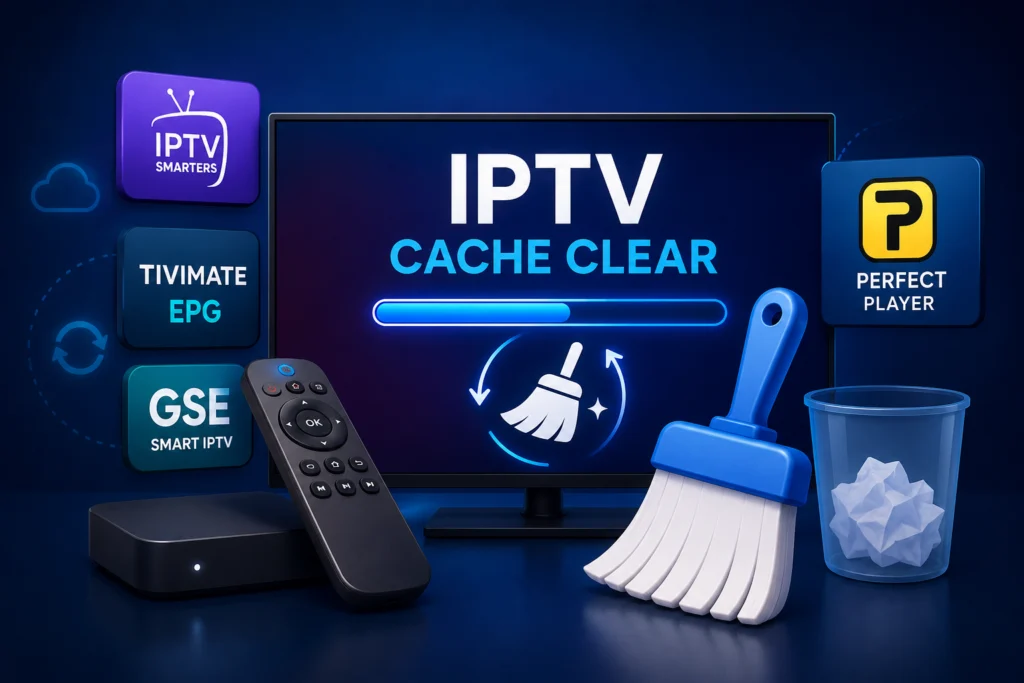
Your IPTV app freezes right in the middle of a big game, or the channel guide refuses to update. It is incredibly frustrating when your stream lags or displays outdated information. Most users immediately blame their IPTV service provider or their internet connection. Yet, the real fix often takes less than 30 seconds.
Clearing the cache is the very first troubleshooting step any support team will recommend. This simple action resolves most performance issues instantly, from sudden buffering to missing TV guide data.
In this comprehensive guide, we will walk you through exactly how to clear your IPTV cache on every major device and streaming application.
1. What Is IPTV Cache and Why Does It Build Up?
Cache is simply temporary data your application stores so it can load faster the next time you open it. Instead of downloading every single image and text file from scratch, your device pulls them from this local storage.
Streaming apps specifically store channel lists, EPG (Electronic Program Guide) data, thumbnails, and login tokens.
Over time, this temporary data piles up. The files can become corrupted or outdated, which quickly leads to performance problems. Regular maintenance is essential. You should aim to clear this data monthly to keep your streams running smoothly.
2. Signs Your IPTV Cache Needs Clearing
You do not need to wait for a total system failure to perform maintenance. Watch for these common indicators that your app needs a refresh:
- App loading much slower than usual
- Channels displaying the wrong names or network logos
- EPG guide showing incorrect or outdated television schedules
- The application crashing or freezing right upon launch
- [Buffering or freezing issues] that started recently without any changes to your internet
- Login errors popping up unexpectedly
- A black screen appearing when you try to open certain channels
3. How to Clear IPTV Cache on Amazon Firestick
The Amazon Firestick is the most popular streaming device available. Here is the quickest way to optimize your apps on this platform:
- Go to Settings from the main home screen.
- Select Applications.
- Choose Manage Installed Applications.
- Scroll down and find your specific IPTV app (like Smarters or TiviMate).
- Select Clear Cache.
- Confirm your choice, press the back button, and launch the app.
Important note: Do not tap “Clear Data” unless you are fully prepared to re-enter all your login credentials from scratch.
4. How to Clear IPTV Cache on Android TV and Android Box
Android TV boxes operate very similarly to the Firestick. Follow these steps to wipe temporary files safely:
- Open Settings from the main dashboard.
- Select Apps or Application Manager.
- Locate and select your IPTV app.
- Tap on Storage.
- Tap Clear Cache.
- Restart the application.
Note: The exact names of these menu options may vary slightly depending on your specific Android version and device manufacturer.
5. How to Clear IPTV Cache on iPhone and iPad
Apple’s iOS ecosystem handles storage differently. The system does not feature a direct clear cache button like Android devices do. You have three alternative ways to handle this.
Option 1: Offload the App
Go to Settings > General > iPhone Storage. Find your streaming app in the list. Tap Offload App. Reinstalling it gives you a clean version while preserving your critical login data.
Option 2: Delete and Reinstall
You can completely delete the app from your home screen and download it again from the App Store. You will need your login details handy for this method.
Option 3: In-App Settings
Some premium applications allow you to clear the cache directly from their internal settings menu. Open your app and check the general settings tab to see if this feature is supported.
6. How to Clear IPTV Cache on Android Phone and Tablet
Mobile Android devices make storage management incredibly straightforward.
- Go to your device Settings.
- Tap Apps or Application Manager.
- Find your streaming application in the list.
- Tap Storage and Cache.
- Press Clear Cache.
- Reopen the application to check performance.
Faster method: Long-press the app icon on your home screen. Tap “App Info”, select “Storage”, and then hit “Clear Cache”.
7. How to Clear IPTV Cache on Samsung Smart TV
Samsung televisions use the Tizen operating system. Wiping temporary files here requires navigating through the device care menu.
- Press the Home button on your remote.
- Navigate left to the Settings gear icon.
- Go to Support, then select Device Care.
- Choose Manage Storage.
- Find your specific IPTV app.
- Select Clear Cache.
Alternative method: Delete the application completely from the Samsung App Store and reinstall it. Older Samsung TV models might have different menu paths, usually found under the general broadcasting settings.
8. How to Clear IPTV Cache on LG Smart TV
LG televisions run on webOS. You can optimize your apps by digging into the system settings.
- Press the Home button on your magic remote.
- Go to Settings, then choose All Settings.
- Select General, followed by System.
- Navigate to Additional Settings, then click Application Manager.
- Locate your streaming app.
- Click Clear Cache.
Note: Your specific webOS version affects exactly where these settings are located. Look for storage or memory management if the exact path differs.
9. How to Clear Cache in Specific IPTV Apps
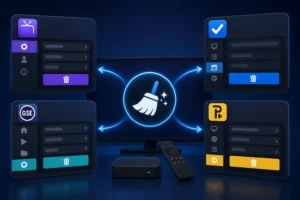
Sometimes, you need to handle maintenance from inside the application itself. This is highly effective for guide and playlist errors.
IPTV Smarters Player
Open the settings within the application. You will find the clear cache option prominently displayed. Running this process in Smarters specifically wipes old interface assets and forces a fresh sync with your provider. If you get logged out during this process, refer to our [IPTV Smarters login guide].
TiviMate
TiviMate EPG cache is the most common cause of guide errors. Navigate to Settings > EPG > Clear EPG Data. This specifically dumps the old television schedule and forces the app to download the latest programming blocks. Check out our full [TiviMate setup article] for more optimization tips.
GSE Smart IPTV
Find the cache settings inside the main application menu. Once you clear the temporary files, you can force-refresh your playlist to ensure all new channels load correctly.
Perfect Player
Open the main settings menu to find the cache clearing location. Executing this command allows you to refresh the channel list instantly, fixing dead links and missing network logos.
10. Clear Cache vs Clear Data: Know the Difference
Pressing the wrong button in your settings menu causes massive headaches. You must understand the difference between these two storage options.
Clear Cache: This removes temporary, non-essential files. It keeps your login details, custom settings, and favorites perfectly intact. This should almost always be your first troubleshooting step.
Clear Data: This wipes absolutely everything. It deletes your credentials, playlists, server URLs, and user preferences. It restores the app exactly to how it was when you first downloaded it.
Warning: Only use “Clear Data” when clearing the cache completely fails to fix the problem. Always write down your username, password, and portal URL before clicking this button.
11. What to Do If Clearing Cache Doesn’t Fix the Problem
If you dumped the temporary files and your app is still struggling, you need to escalate your troubleshooting steps.
- Try clearing the app data instead of just the cache (remember to save your login details).
- Uninstall and reinstall the application completely from your device.
- Restart your wireless router and your streaming device by unplugging them for 60 seconds.
- Check to see if the issue is with your provider’s server being temporarily down.
- Contact your IPTV provider‘s support desk for assistance.
Our iptvcad support team responds incredibly quickly. If you need help getting your stream back online, reach out to us directly.
Keep Your Stream Running Smoothly
Clearing your cache is the quickest and easiest fix for the vast majority of IPTV performance issues. You do not need technical expertise to navigate your device settings and dump these temporary files.
Make it a monthly habit to clear this data to keep your app running smoothly. Routine maintenance prevents frustrating buffering right before your favorite show starts. If problems constantly persist after you clear the cache, the issue likely lies with your internet connection or your current service.
If you are tired of dealing with slow servers and unresponsive support, consider trying iptvcad with a free trial today.
FAQ Section
Does clearing IPTV cache delete my channels?
No. Clearing the cache only removes temporary files like thumbnails and old guide data. Your actual channel list and playlist configurations remain completely safe.
Will I lose my login details if I clear cache?
No. Your username, password, and portal URL are stored in the app’s permanent data. As long as you do not click “Clear Data,” your login credentials will stay intact.
How often should I clear my IPTV cache?
You should clear your cache about once a month as general maintenance. You should also clear it immediately anytime your app starts freezing, crashing, or displaying incorrect guide information.
Why is my IPTV still slow after clearing cache?
If clearing the cache does not fix the speed, your device might be running out of overall storage space. Alternatively, your internet connection might be unstable, or your iptv provider‘s servers could be experiencing heavy traffic.
What is the difference between clear cache and clear data on IPTV?
Clearing cache removes safe, temporary files to speed up the app. Clearing data acts as a factory reset—it deletes your login details, playlists, and custom settings entirely.
Does clearing cache fix IPTV buffering?
Yes, it frequently fixes buffering. When temporary storage gets too full, your device struggles to process incoming live video streams. Clearing out that digital clutter gives the app the processing power it needs to play video smoothly.