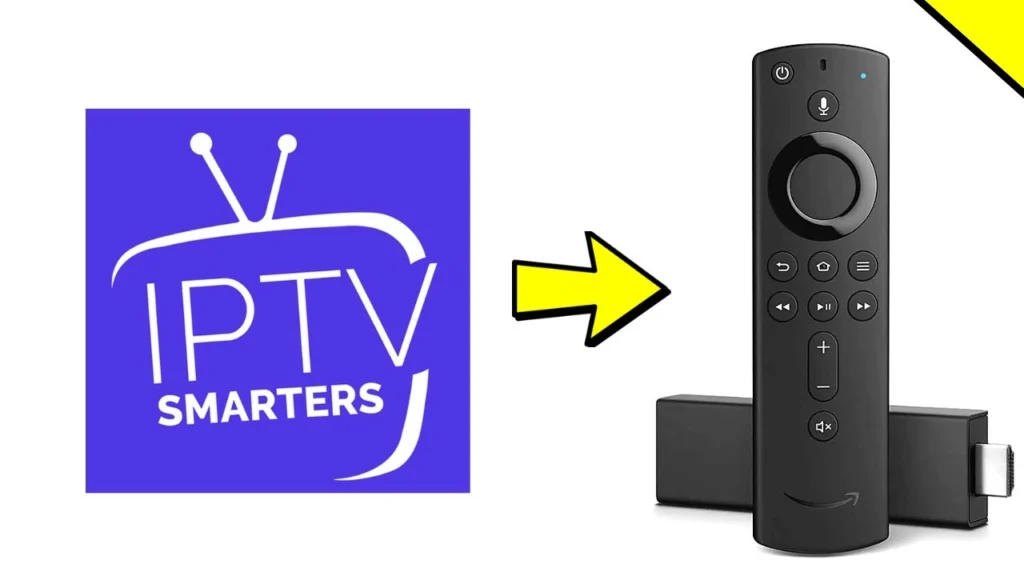
Want to stream live TV, movies, and shows on your Amazon Firestick? IPTV Smarters Pro is a popular app that supports Xtream Codes and M3U playlists, making it easy to access your favorite content. This quick guide will walk you through the simple steps to install and set up IPTV Smarters Pro on your Firestick in minutes.
Step-by-Step Guide to Install IPTV Smarters Pro on Firestick
Step 1: Enable Unknown Sources
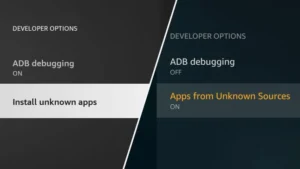
From the Firestick home screen, go to Settings (gear icon).
Select My Fire TV → Developer Options.
Turn ON both “Apps from Unknown Sources” and “ADB Debugging.” (This allows third-party app installations.)
Step 2: Install the Downloader App
Return to the home screen and search for “Downloader” in the Amazon App Store.
Download and open the app.
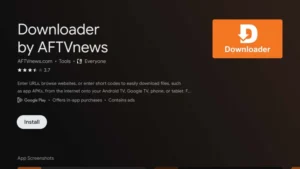
Step 3: Download IPTV Smarters Pro
In the Downloader app, enter this code: 5546232
Click “Go” to download the APK file.
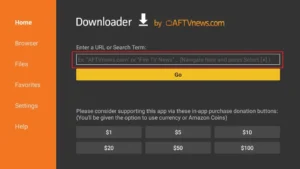
Step 4: Install the APK
After downloading, select “Install” (ignore any “risky app” warnings).
Wait for installation to complete, then click “Done.”
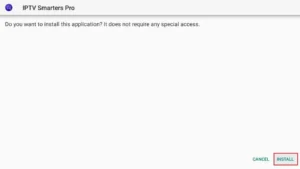
Step 5: Launch & Set Up IPTV Smarters Pro
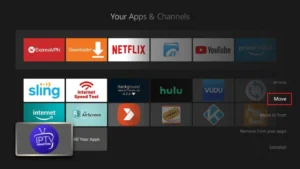
Open the app from your Firestick’s “Your Apps & Channels” section.
Log in using:
Xtream Codes API: Enter username, password, and server URL (from your provider).
M3U URL: Paste your playlist link under “Load Your Playlist.”
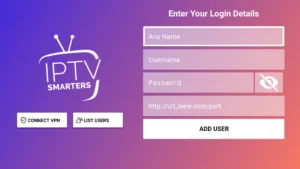
Assistance and Support
If you encounter issues, contact your IPTV Canada provider for login details or our support team for installation help. Enjoy seamless streaming on your Firestick with IPTV Smarters Pro!