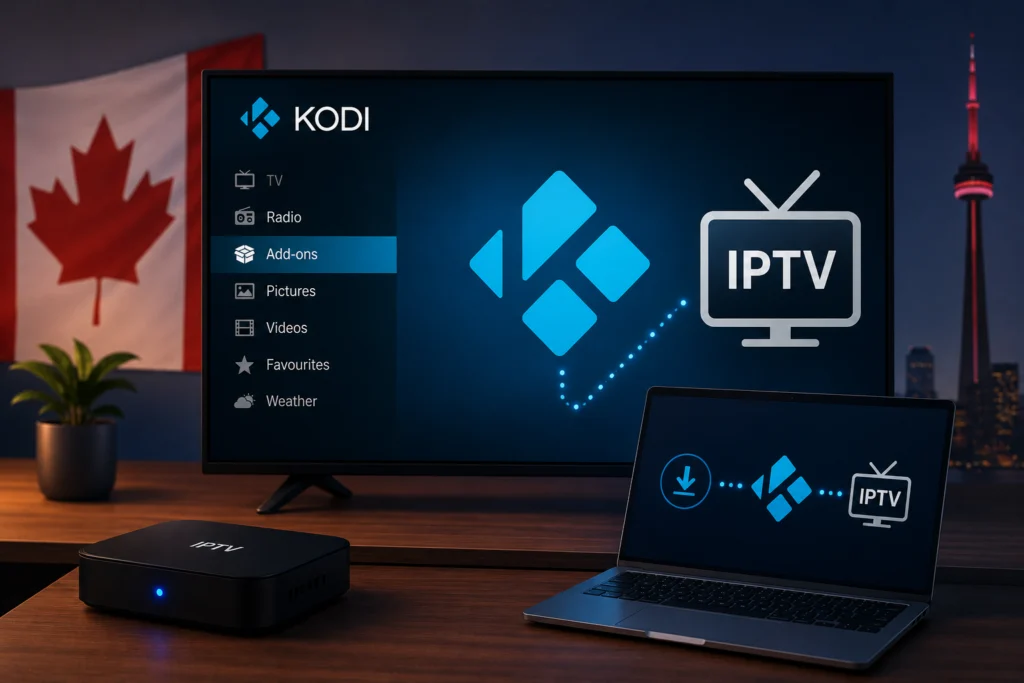
Kodi stands out as one of the most powerful and flexible media players available right now. While it starts as a blank slate, adding the right setup transforms it into a fully featured IPTV player capable of streaming your favorite live channels.
Many Canadians specifically choose Kodi because it is completely free, open-source, and compatible with almost every device imaginable. You can run it on your living room television, your desktop computer, or a dedicated streaming box without paying a dime for the software itself.
However, getting everything configured requires a few specific steps. If you have never used this platform before, the interface might feel slightly intimidating. That is exactly why we created this guide. We will walk you through the complete setup process from scratch, ensuring you can get your IPTV service running smoothly.
What Is Kodi and Why Use It for IPTV?
Kodi is an open-source media center software designed to organize and play digital media. It does not provide any content of its own. Instead, it relies on users to add local files or internet streams.
People love using it for IPTV because it offers unmatched customization. You can change the entire layout, adjust playback settings for better streaming, and install it across multiple operating systems. Furthermore, Kodi itself is completely legal to download and use in Canada.
To watch live television, you will need to use a specific built-in add-on called the PVR IPTV Simple Client. This tool reads the channel list from your provider and displays it neatly inside the app. Kodi works beautifully on Windows, Mac, Android, Amazon Firestick, Android TV boxes, and even Raspberry Pi.
Keep in mind that this software is not always ideal for casual users. It features a steeper learning curve than dedicated apps like Smarters or TiviMate, but the payoff in flexibility is huge.
What You Need Before You Start
Before diving into the setup process, make sure you have a few essential things ready:
- Kodi installed on your device: We recommend using the most current stable version, such as Kodi 20 (Nexus) or Kodi 21 (Omega).
- An active IPTV subscription: You need an iptv service that provides an M3U URL.
- Your EPG URL: This gives you the TV guide data.
- A stable internet connection: Hardwired ethernet or strong 5GHz Wi-Fi works best for live streaming.
You can usually find your M3U URL and EPG link in the welcome email sent by your provider. If you are looking for a reliable service, iptvcad provides your M3U URL instantly after signup so you can start immediately.
How to Install Kodi (If You Haven’t Already)
The installation method depends heavily on what hardware you plan to use.
On Windows
- Open your web browser and visit the official website at kodi.tv.
- Navigate to the download section and select the Windows installer.
- Run the downloaded file and follow the standard installation prompts.
On Amazon Firestick
- Go to your Firestick Settings, select “My Fire TV,” and open “Developer Options.”
- Enable “Apps from Unknown Sources.”
- Download the “Downloader” app from the Amazon Appstore.
- Open Downloader, type kodi.tv/download into the URL bar, and download the Android APK file to sideload the app.
On Android TV / Android Box
- Open the Google Play Store on your device.
- Search for “Kodi.”
- Click “Install” for a simple, direct installation.
On Mac
- Visit kodi.tv and download the Mac OS version.
- Open the downloaded file and drag the icon into your Applications folder.
On iPhone/iPad
Kodi is not available on the official iOS App Store. Installing it requires alternative methods like sideloading via a computer or using a jailbroken device. Because of this hassle, we highly recommend using a different, dedicated IPTV app for iOS users.
How to Enable PVR IPTV Simple Client on Kodi
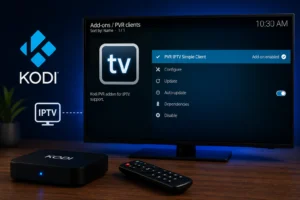
The PVR IPTV Simple Client is the engine that handles your live channels. In newer versions of the software, this add-on comes pre-installed, meaning you do not need to download anything extra.
- Step 1: Open Kodi and navigate to “Add-ons” from the main left-hand menu.
- Step 2: Select “My Add-ons.”
- Step 3: Scroll down and choose “PVR Clients.”
- Step 4: Scroll through the list until you find “PVR IPTV Simple Client” and click on it.
- Step 5: Click the “Enable” button at the bottom of the screen.
- Step 6: Click “Configure” to prepare for the next phase.
How to Add Your M3U URL to Kodi
Now you need to link your active subscription to the client.
- Step 1: Open the PVR IPTV Simple Client settings (from Step 6 above).
- Step 2: Under the “General” tab, look for the “Location” setting and ensure it says “Remote Path (Internet Address).”
- Step 3: Click on “M3U playlist URL.”
- Step 4: Carefully type or paste the M3U URL provided by your IPTV service.
- Step 5: Click “OK” to save your settings.
- Step 6: Restart Kodi completely. Close the application and open it again.
- Step 7: Go to the “TV” section in the main menu. Your channels will now begin to populate.
If channels do not appear after a restart, double-check your URL for typos.
How to Add EPG (TV Guide) to Kodi
An Electronic Program Guide (EPG) shows you what is currently playing and what is coming up next. It makes navigating your channels significantly easier.
- Step 1: Go back into the PVR IPTV Simple Client settings.
- Step 2: Click on the “EPG Settings” tab.
- Step 3: Set the location to “Remote Path” and click on “XMLTV URL.”
- Step 4: Enter the EPG URL provided by your service.
- Step 5: Set your EPG cache to 1 or 2 days for optimal performance.
- Step 6: Save your settings and restart the application.
- Step 7: Click on the “TV Guide” section to confirm your data has loaded.
How to Navigate IPTV Channels on Kodi
Once your channels and guide are loaded, navigating is quite straightforward. Access your complete channel list by clicking the “TV” section on the home screen. You can browse channels by category (like Sports, News, or Movies) using the group folders.
To see what is playing, open the TV Guide menu item. If you find channels you watch frequently, bring up the context menu (right-click on PC, long-press select on a remote) and choose “Add to favourites.” You can also search for a specific network by using the search function located in the left-hand slide-out menu.
How to Install IPTV on Kodi on Specific Devices
Firestick
The Amazon Firestick is incredibly popular in Canada due to its low cost and small size. However, it has limited storage and memory. To keep things running smoothly, clear your cache regularly. You can also add a shortcut to your Firestick home screen by pressing the menu button on the app icon and selecting “Move to front.”
Android TV Box
Android boxes generally offer the best performance for heavy streaming apps. They provide more RAM and better processors than streaming sticks. For the best experience, connect your Android box directly to your router using an ethernet cable.
Windows PC
Running this software on a PC gives you incredible speed. Press the backslash key (\) to easily toggle between full-screen and windowed mode. You can also use the up and down arrow keys to quickly flick through channels without opening the main menu.
Best Kodi Settings for Smooth IPTV Streaming
Nobody likes buffering. Fortunately, you can tweak a few settings to improve playback.
- Hardware Acceleration: Go to Settings > Player > Videos and ensure “Allow hardware acceleration” is turned on. This helps smoothly decode HD and 4K streams.
- Refresh Rate: Under Player settings, set “Adjust display refresh rate” to “On start/stop” so your TV matches the broadcast framerate.
- Audio Sync: If sound falls out of sync with the video, bring up the on-screen display during playback, click the audio settings icon, and adjust the “Audio offset.”
Common Kodi IPTV Problems and How to Fix Them
Channels not showing after adding M3U URL
Double-check that your URL is correct and active. Remember that you must restart the application completel not just minimize it for the channel list to download.
EPG not loading
Verify that your EPG URL is typed exactly as provided. If it still fails, go to Settings > PVR & Live TV > Guide and click “Clear data” to force a fresh download.
Buffering on Kodi but not on other apps
This usually points to a cache issue. Adjusting your advanced XML cache settings can help, but ensuring hardware acceleration is enabled is the quickest fix.
Black screen when opening channels
First, verify your internet connection is active. If the connection is fine, try changing the default video player or disabling hardware acceleration temporarily to see if your device is struggling with the video codec.
Kodi crashing on Firestick
Firesticks run out of space quickly. Go to your Fire TV settings, find the application list, and clear the cache. Delete any unused apps to free up local storage space.
Channels disappeared after Kodi update
Sometimes major software updates disable add-ons. Simply go back to “My Add-ons,” find the PVR IPTV Simple Client, and re-enable it.
Is Kodi Legal in Canada?
Kodi itself is 100% legal. It is merely a piece of open-source software, much like a web browser. Using it with a legitimate IPTV subscription that you pay for is also legal.
The legal grey area surrounds third-party add-ons built to scrape the internet for pirated movies and television shows. You want to avoid those third-party add-ons that promise thousands of free premium channels. By using the official PVR IPTV Simple Client with a paid subscription from a provider like iptvcad, you stay safely on the right side of Canadian law.
Get Started with Kodi IPTV Today
Pairing Kodi with the PVR IPTV Simple Client creates one of the most robust viewing experiences available. While the initial setup involves a few technical steps, it generally takes only about 10 minutes once you have your M3U URL in hand. The learning curve is entirely worth it for the control and customization you gain.
Ready to build your ultimate streaming hub? Grab your M3U URL from IPTV Canada and start watching your favorite channels in minutes.
Frequently Asked Questions
Is Kodi legal in Canada?
Yes, the software itself is completely legal. It only becomes a legal issue if you use unapproved third-party add-ons to access copyrighted material for free.
Do I need a subscription to use IPTV on Kodi?
Yes, you need an active subscription from an IPTV provider that supplies an M3U URL to watch live television channels.
What is PVR IPTV Simple Client?
It is an official, built-in add-on that allows the software to read M3U playlists and display live television streams and TV guides.
Can I use Kodi on my Firestick for IPTV?
Absolutely. You will need to sideload the app using the Downloader tool, but it runs very well on Fire TV devices.
Why are my channels not showing on Kodi?
This usually happens due to a typo in the M3U URL or because the app was not restarted after the URL was entered.
Does Kodi support 4K IPTV streams?
Yes, it fully supports 4K streaming, provided your device hardware and internet connection are fast enough to handle the bandwidth.
What is the best Kodi version for IPTV in Canada?
Always use the latest stable release (currently version 20 Nexus or 21 Omega) for the best security and performance.
Can I use Kodi IPTV on multiple devices?
Yes, you can install the software on as many devices as you want. However, your IPTV provider dictates how many devices can stream simultaneously on a single subscription.