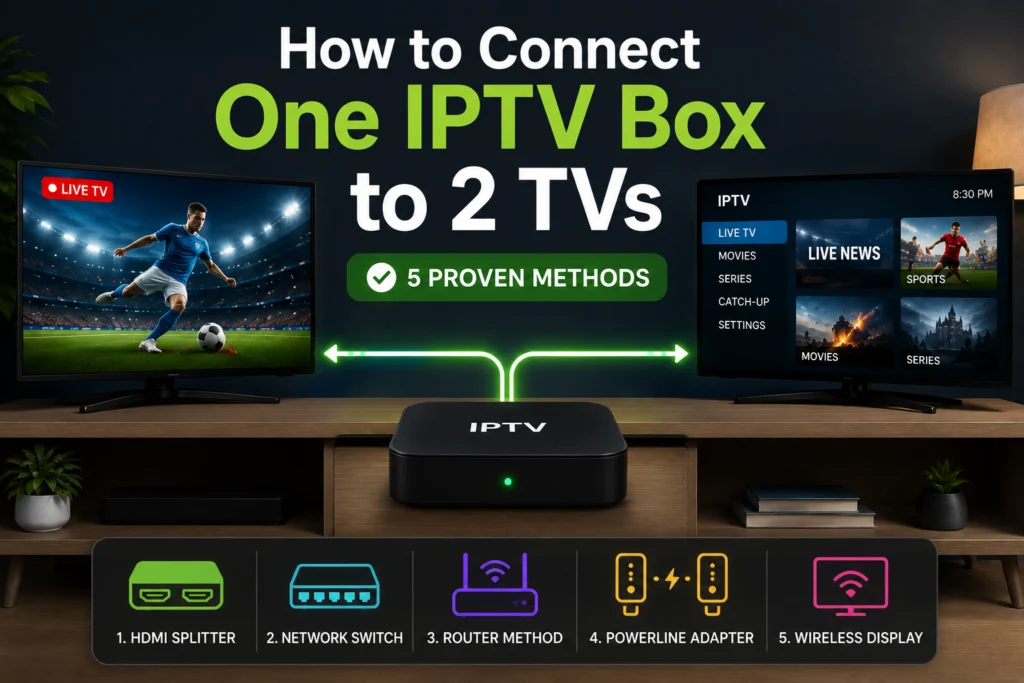
You have a great IPTV subscription running perfectly in your living room. Now, you want to watch your favorite shows in the bedroom. Buying a second IPTV box often feels completely unnecessary when you are already paying for a service.
Fortunately, there are smarter solutions to expand your viewing setup. Depending on your home layout, budget, and technical comfort level, you have several reliable ways to get that single subscription working across multiple screens.
We will walk through every method clearly so you can pick the exact approach that works for your household. By the end of this guide, you will know exactly what hardware or subscription adjustments you need to get your dual-TV setup running smoothly.
Can You Really Connect One IPTV Box to Two TVs?
Yes, you can absolutely connect a single IPTV box to two televisions. However, you need to understand one critical limitation before buying any cables or equipment.
The most important question is whether you want to watch the same content on both screens simultaneously, or if you want independent viewing on each TV.
If you just want to duplicate the screen so that both TVs show the exact same channel at the same time, a single box can easily feed two displays. This works well if you want to walk from the living room to the kitchen without missing a moment of a live sports game.
If you want one person to watch a movie in the living room while someone else watches the news in the bedroom, you need a different approach. Independent viewing requires two separate connections or two separate streaming devices. Keep this distinction in mind as you review the methods below.
What You Need to Know Before You Start
Before choosing a setup method, take a moment to evaluate your current situation.
First, check your IPTV subscription connection limit with IPTV Canada. Many basic plans only allow a single connection, while other plans offer multi-connection options. Next, measure the distance between your two TVs. The physical space will dictate which hardware methods are actually viable.
You should also consider your budget. Some methods require a small investment in cables, while others might require an upgraded subscription. Finally, think about your home layout. An open-plan condo offers different wiring opportunities compared to a multi-story Canadian household with thick walls separating the rooms.
Method 1: HDMI Splitter (Simplest Setup)
An HDMI splitter does exactly what the name implies. It takes one HDMI video output from your IPTV box and splits it into two separate signals. Both TVs will display the exact same content at the exact same time.
What You Need
- One HDMI splitter (1 in, 2 out)
- Two HDMI cables
- Your existing IPTV box
How to Set It Up
- Connect your IPTV box HDMI output to the input port on the splitter.
- Run an HDMI cable from the splitter’s first output port to your primary TV.
- Run a second HDMI cable from the splitter’s second output port to your second TV.
- Plug the splitter into a power source (if it is an active splitter) and turn on both TVs.
- Select the correct HDMI input on both television sets.
This method is best for open-plan living spaces where having two screens showing the same channel makes sense. Because one remote controls the single IPTV box, you cannot change channels independently.
A vital consideration here is cable length. Standard HDMI signals degrade rapidly over long distances. If your second TV is more than 5 meters away, you must use an active HDMI cable with a built-in amplifier to prevent signal loss.
Method 2: HDMI Over Ethernet Extender
If your TVs are in completely different rooms, standard HDMI cables become impractical. An HDMI over Ethernet extender solves this by sending the video signal over a standard network cable.
What You Need
- HDMI over Ethernet extender kit (contains a transmitter and a receiver)
- A Cat5e or Cat6 Ethernet cable running between the rooms
- Your IPTV box
How to Set It Up
- Connect the transmitter unit to your IPTV box using a short HDMI cable.
- Run the long Ethernet cable from the transmitter into the second room and plug it into the receiver.
- Connect the receiver to your second TV via HDMI.
- Power on both the transmitter and receiver units, then select the correct input on the second TV.
Most quality extenders support distances up to 50 meters with zero signal loss. This setup is perfect for connecting a living room box to a bedroom TV located on the other side of the house. Like the basic splitter, this method still duplicates the same content on both screens.
Method 3: Wireless HDMI Transmitter
If you want to send video to another room but refuse to drill holes or run cables along your baseboards, wireless HDMI is your answer.
What You Need
- A wireless HDMI transmitter and receiver kit
- Accessible power outlets near both TVs
How to Set It Up
- Connect the wireless transmitter to your IPTV box’s HDMI output.
- Place the receiver near the second TV and connect it using an HDMI cable.
- Plug both units into wall power. They will usually pair with each other automatically.
- Switch your second TV to the correct HDMI input.
These kits typically transmit signals up to 30 meters through standard walls. However, thick brick walls or heavy interference from local Wi-Fi networks can degrade the signal quality. You might also experience a very slight delay on the second screen. This is a great solution for homes where running physical cables is simply impossible.
Method 4: Multi-Connection IPTV Subscription
This is the most highly recommended solution if you want completely independent viewing on each TV. Instead of splitting a single video feed, you upgrade your iptv service to allow multiple simultaneous streams.
What You Need
- A multi-connection IPTV plan (minimum of 2 connections)
- A second streaming device for the second TV (like an Amazon Firestick, Android box, or a compatible Smart TV app)
How to Set It Up
- Upgrade your current subscription to a multi-connection plan.
- Install your preferred IPTV app on the second TV’s streaming device.
- Log in using your existing account credentials on both devices.
- Enjoy completely independent channel surfing on each television.
This approach offers total independence with zero messy cables and no expensive transmitter hardware. Buying a secondary streaming stick like an Amazon Firestick is usually much cheaper than buying a high-end wireless HDMI kit. Providers like iptvcad offer excellent multi-connection plans that allow you to watch different channels in the living room and bedroom flawlessly. Check out our Firestick setup article for a quick installation guide.
Method 5: Screen Mirroring and Casting
For a fast, temporary solution, you can use built-in screen mirroring features. Many Android-based IPTV boxes support Miracast or Google Cast.
What You Need
- An IPTV box with casting capabilities
- A smart TV or streaming stick that can receive screen mirroring
How to Set It Up
- Navigate to the settings on your IPTV box and enable screen mirroring.
- Enable the receiving cast mode on your second TV.
- Pair the two devices over your local Wi-Fi network.
- The second TV will now mirror the interface of the main box.
We only recommend this for temporary, occasional use. The video quality can be highly inconsistent, and heavy buffering is common depending on your router’s strength.
Comparing All Five Methods
Use this quick comparison table to evaluate which method fits your specific needs.
| Method | Content Type | Cables Required | Extra Cost | Difficulty | Best For |
| HDMI Splitter | Same | Yes (HDMI) | Low | Easy | Same room viewing |
| HDMI Extender | Same | Yes (Ethernet) | Medium | Medium | Different rooms |
| Wireless HDMI | Same | No | High | Easy | No-drill setups |
| Multi-Connection | Different | No | Low (Monthly) | Easy | Independent viewing |
| Screen Mirroring | Same | No | Free | Medium | Temporary use |
Which Method Is Right for Your Home?
If you feel overwhelmed by the options, narrow down your choice based on your daily viewing habits.
If you want the same content and both TVs are in the same room, buy a cheap HDMI splitter.
If you want the same content in different rooms, an HDMI over Ethernet extender is highly reliable.
If you cannot run any cables between rooms, invest in a wireless HDMI transmitter.
If you want to watch a movie while your partner watches sports, you absolutely need a multi-connection plan paired with a secondary device.
For older Canadian homes built with plaster, lath, or thick brick walls, wireless methods often struggle to maintain a strong signal. In these older houses, the multi-connection plan relying on your home Wi-Fi network is usually the most stable route.
How Much Internet Speed Do You Need for Two TVs?
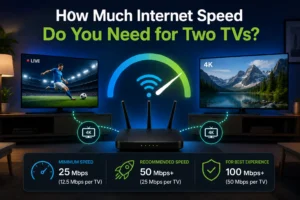
Every active stream requires its own dedicated bandwidth. If you decide to use two devices simultaneously on a multi-connection plan, your internet connection needs to handle the increased load.
For standard high-definition (HD) streaming on two TVs, we recommend a minimum internet speed of 30 Mbps. If you plan to stream 4K content on both screens, you will need a minimum of 60 Mbps. For a mixed environment featuring one 4K stream and one HD stream, aim for at least 40 Mbps.
Most modern Canadian ISP plans easily cover these requirements. However, if both TVs are connected via Wi-Fi, your speeds will fluctuate. For the best stability, try to wire at least one of your streaming devices directly to your router using an Ethernet cable. You can learn more in our dedicated internet speed requirements guide.
Common Problems and How to Fix Them
Setting up dual screens does not always work perfectly on the first try. Here is how to troubleshoot the most frequent issues.
No signal with an HDMI splitter
First, check all your cable connections to ensure they are seated firmly. If your splitter requires an external power supply, ensure it is plugged into the wall. Try swapping out the HDMI cables to rule out a faulty wire, and double-check that your TV is on the correct input channel.
Lower picture quality on one TV
Many cheap passive splitters do not support 4K passthrough. Always check the specifications before buying. Upgrading to an active, powered splitter usually solves signal degradation. Also, ensure your HDMI cables are as short as practically possible.
HDMI extender fails to connect
Verify that the Ethernet cable is securely clicked into both the transmitter and the receiver. Try testing the setup with a different, shorter Ethernet cable to see if the original wire is damaged.
Wireless HDMI signal keeps dropping
Move the transmitter and receiver slightly to avoid massive obstructions. Try to reduce interference by keeping the units away from microwaves or heavy wireless routers. A direct line of sight between the two units always provides the best results.
Getting kicked off your IPTV app
If your stream randomly stops when the second TV turns on, your current subscription plan only allows one simultaneous connection. To fix this, you must upgrade your account. Providers like iptvcad offer affordable multi-connection plans that instantly solve this issue.
Is It Legal to Use One IPTV Subscription on Two TVs in Canada?
This entirely depends on your specific provider’s terms of service.
Standard single-connection plans are strictly designed for one stream at a time. The hardware splitting methods (Methods 1 through 3) only utilize one digital stream from the provider, meaning they generally comply with standard single-connection rules.
Method 4 utilizes two separate data streams from the server. Therefore, you must pay for a multi-connection plan. Attempting to force two separate devices onto a single-connection plan usually results in IP bans or account suspension. Always read your provider’s terms to stay fully compliant. If you need a flexible service, iptvcad offers clear, restriction-free multi-connection plans tailored to Canadian households.
Make the Right Connection for Your Home
Expanding your viewing setup does not have to be a frustrating experience. Whether you choose to run an Ethernet extender across the house or use a basic splitter in the living room, you have plenty of reliable hardware options to duplicate your screen.
However, for true flexibility and independent viewing, upgrading your account remains the superior choice. The multi-connection approach is affordable, entirely wireless, and future-proofs your home entertainment system.
Ready to stop fighting over the remote? Try iptvcad’s multi-connection plan today and enjoy independent viewing on every television in your house.