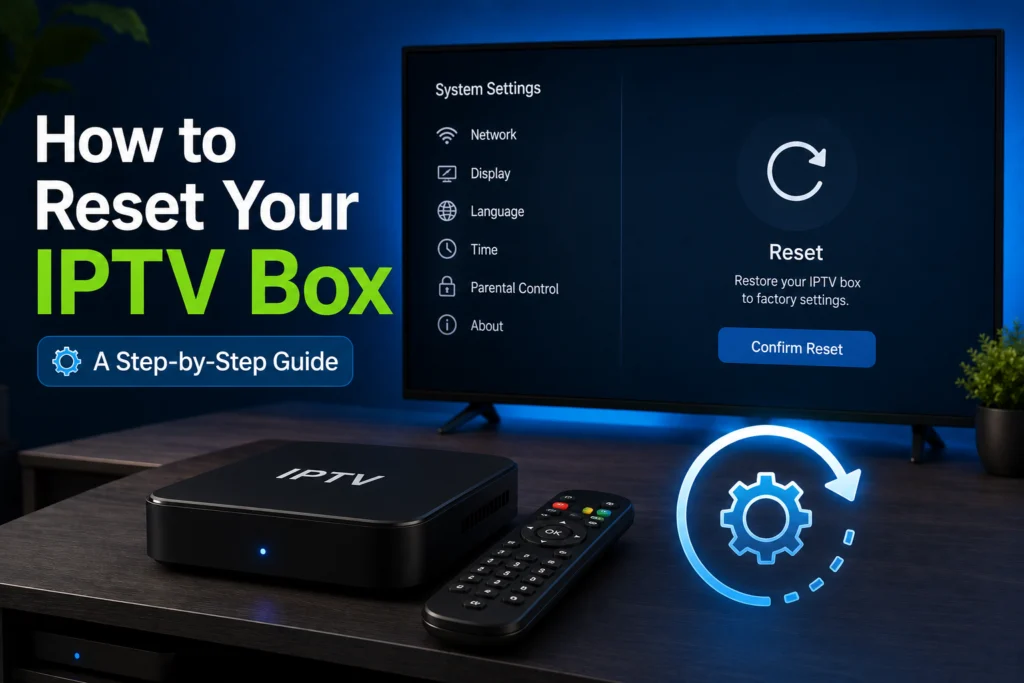
Your favorite show is just getting to the good part, and suddenly, your screen freezes. Or maybe your IPTV box is running painfully slow, throwing random error codes, or simply refusing to respond to the remote control. It is incredibly frustrating to deal with technology that stops working when you want to relax.
A reset is often the fastest and most effective fix for these common issues. However, many users do not realize there are different types of resets. If you choose the wrong one, you could accidentally wipe your entire device, losing all your login credentials, custom settings, and favorite channels in an instant.
This guide will explain every type of reset and exactly when to use each one. We will walk you through how to safely perform these resets on every major device, ensuring you get your system back up and running without any unnecessary headaches.
Why You Might Need to Reset Your IPTV Box
Devices handle a lot of data, and occasionally, their internal systems get overwhelmed. You might need to reset your device if you experience any of the following problems:
- The IPTV app freezes or crashes repeatedly.
- Your box runs incredibly slow or lags while navigating menus.
- Channels fail to load or display persistent error messages.
- The remote control stops responding properly.
- Your box gets stuck entirely on the loading screen.
- A recent software update did not install correctly.
- You forgot your PIN or parental control password.
- You are preparing to sell or give away the device.
- You experience persistent buffering that other troubleshooting steps have not solved.
- The box refuses to connect to the internet after a router change.
The Three Types of Reset: Know the Difference
Before you start pressing buttons, you need to understand the different types of resets available. Jumping straight to the most drastic option is the biggest mistake you can make.
Soft Reset (Restart)
A soft reset is simply turning the box off and back on again. This clears temporary memory and refreshes the system. It does not delete any of your settings, channels, or credentials. This should always be your very first step before attempting anything else. When doing a soft reset, unplug the device for at least 60 seconds, rather than just 10 seconds, to ensure the internal components fully power down.
Cache Reset
A cache reset clears stored temporary data without touching your primary settings. It does not delete your login credentials or channel lists. This is an excellent way to fix slow performance and app errors. Make this your second step if a soft reset does not resolve your issue.
Factory Reset (Hard Reset)
A factory reset wipes everything. It returns your box to its original, out-of-the-box state. Doing this deletes all your apps, customized settings, login credentials, and channel lists. You should use a factory reset only as an absolute last resort when all other fixes have failed.
Warning: Write down all your login credentials and portal URLs before performing a factory reset. You will need to start from scratch afterward or contact us before doing that.
How to Soft Reset Your IPTV Box (All Devices)
A soft reset is universally safe and highly effective. Here are the three main ways to do it on almost any device.
Method 1: The Power Button
Locate the power button on the box itself. Hold it down for 3 to 5 seconds until the device powers off completely. Wait a full 60 seconds, then press the button again to power it back on.
Method 2: Unplug the Power
If your box lacks a physical power button, simply unplug the power cable from the back of the device or the wall outlet. Wait a full 60 seconds. Capacitors inside the box need this time to fully discharge. Plug it back in and wait for the system to boot up. Doing this weekly as general maintenance keeps your box running smoothly.
Method 3: Remote Control Restart Option
Many modern boxes include a built-in restart option. Navigate to Settings, select System, and choose Restart.
How to Reset an Amazon Firestick
Amazon Firesticks are incredibly popular, but they occasionally suffer from app crashes and sluggish menus.
Soft Reset
Hold down the Home button on your remote for 10 seconds. Select the Sleep option, then press a button to wake it back up. Alternatively, go to Settings > My Fire TV > Restart.
Factory Reset via Settings
- Go to Settings from the home screen.
- Select My Fire TV.
- Choose Reset to Factory Defaults.
- Confirm the reset.
- Wait for the Firestick to restart and set it up from scratch.
Factory Reset via Remote
If your Firestick is frozen and you cannot access the settings menu, press and hold the Back button and the Right side of the navigation ring at the same time. Hold them for 10 seconds. A prompt will appear allowing you to confirm the factory reset. Remember, this wipes all apps and settings. You will need to log back into your Amazon account afterward.
How to Reset an Android TV Box
Android TV boxes come in many shapes and sizes, but the reset process is generally consistent across brands.
Soft Reset
Navigate to Settings > Device Preferences > Restart. You can also hold the power button on your remote and select Restart from the pop-up menu.
Factory Reset via Settings
- Open the Settings menu.
- Select Device Preferences.
- Choose Reset.
- Select Factory Data Reset.
- Confirm your choice and wait for the process to finish. Note that menu paths might vary slightly depending on your specific Android version.
Factory Reset via Hardware Button
If your Android box is completely unresponsive, look for a small reset pinhole. It is usually located on the side or back of the device. Leave the box powered on, insert a paperclip or SIM ejector tool into the pinhole, and hold it down for 10 seconds. The box will restart and begin the factory reset process. You will need to reinstall your IPTV app and re-enter your details once it finishes.
How to Reset a MAG Box
MAG boxes are dedicated IPTV devices that rely heavily on portal URLs. Resetting them requires a bit of extra care.
Soft Reset
Press the power button on your MAG remote, or unplug the power cable from the wall for 60 seconds.
Factory Reset via Menu
- Go to Settings from the MAG home screen.
- Select System Settings.
- Choose Servers.
- Select Reset Settings.
- Confirm the reset.
Factory Reset via Hardware
Find the physical reset button on the back of the MAG box. With the device powered on, hold this button for 10 seconds. Release it as soon as the LED light begins to flash.
Note: Resetting a MAG box completely clears the portal URL. You will need to have your provider’s portal URL ready before you reset. If you are looking for a seamless experience, iptv canada sends your portal URL and credentials directly in your welcome email for incredibly easy re-entry.
How to Reset a Formuler Box
Formuler boxes are premium devices running the highly-rated MyTVOnline application.
Soft Reset
Press the power button on your Formuler remote and select Restart. Otherwise, unplug the device from its power source for 60 seconds.
Factory Reset via Settings
- Open the MyTVOnline app.
- Navigate to Settings.
- Select System.
- Choose Factory Reset.
- Enter your PIN if required (the default PIN is usually 0000).
- Confirm and wait for the reset to complete.
Factory Reset via Hardware Button
Locate the reset pinhole on the back of the Formuler device. While the box is powered on, insert a paperclip and hold it for 10 seconds until the LED light changes color. The box will restart automatically. After the reset, reinstall MyTVOnline and re-enter your portal URL.
How to Reset a Dreamlink Box
Dreamlink boxes are particularly popular in Canada, specifically in Ontario, and offer robust IPTV performance.
Soft Reset
Unplug the power cable, wait a full 60 seconds, and plug it back in. You can also navigate to Settings > System > Reboot.
Factory Reset via Settings
- Open Settings.
- Select System Information.
- Choose Factory Reset.
- Enter the administrator password (the default is 0000).
- Confirm the action and wait for completion. You must re-enter your portal URL and credentials once the system reboots.
How to Reset IPTV Apps Without Resetting the Whole Box
Sometimes the box itself is fine, but the IPTV application is acting up. Resetting the app is much less drastic than formatting the entire device.
Clearing App Cache
Go to Settings > Apps > Your IPTV App > Clear Cache. This fixes sluggish performance and minor glitches without losing any of your saved settings or login details.
Clearing App Data
Navigate to Settings > Apps > Your IPTV App > Clear Data. This resets the application to a fresh installation state. You will need to re-enter your credentials, but you won’t have to set up your Wi-Fi or device preferences again.
Uninstalling and Reinstalling
If clearing data does not work, uninstall the app completely and download a fresh copy. This fixes deeply corrupted app files.
Before You Factory Reset: Important Checklist
Do not initiate a factory reset without completing this checklist. It will save you from a massive post-reset headache.
- Write down your exact IPTV username and password.
- Note down your server URL or M3U URL.
- Write down your specific portal URL if you use a MAG or Formuler box.
- Take note of any custom channel favorites you want to recreate. (Taking a photo of your screen is usually the easiest method).
- Verify that your IPTV subscription is currently active.
- Have your Wi-Fi password ready, as you must reconnect to the internet during the initial setup.
If you have already lost your login credentials, reach out to iptvcad support. Our team can quickly help you retrieve your details and get back online.
How to Set Up Your IPTV Box After a Factory Reset
Once your box wipes itself clean, follow these steps to get your entertainment back on track. This full process typically takes between 10 and 15 minutes.
- Connect the box to your Wi-Fi network or plug in your Ethernet cable.
- Complete the initial setup wizard on your device screen.
- Download your preferred IPTV app from the appropriate app store.
- Open the application and enter your saved credentials.
- Wait a few moments for the channel list and TV guide to fully load.
- Restore your custom settings and recreate your favorites list.
With iptv canada, your credentials work instantly after re-entry. You do not need to worry about complicated re-activation processes.
Common Problems After Resetting an IPTV Box
Sometimes a reset introduces a minor bump in the road. Here is how to handle post-reset complications.
Box stuck on setup screen
Wait at least 5 full minutes. The very first boot sequence takes significantly longer after a factory reset. If it remains stuck after 10 minutes, unplug the power, wait, and plug it back in.
Cannot remember Wi-Fi password
Check the sticker on the back or bottom of your internet router. You can also log into your router’s admin panel from a laptop or smartphone to view the current password.
IPTV app missing from app store
Check the region and location settings on your freshly reset device. Search for the exact spelling of the app name. If it is still missing, you may need to sideload it.
Credentials are not working
Carefully double-check your username, password, and server URL. Pay close attention to capital letters and numbers. If you still cannot log in, contact your provider. The iptv canada support team is always available to help users with re-entry issues.
Channels load but streams will not play
Verify your internet connection is active. Run a quick speed test to ensure you have adequate bandwidth for streaming. Try clicking on a completely different channel to rule out a temporary server issue.
Box runs exactly the same as before
Ensure the factory reset actually completed fully by looking for a confirmation message. Certain budget boxes occasionally require two consecutive resets to fully clear the memory. Also, check for any pending firmware updates in your system settings.
When a Reset Is Not the Answer
A reset is powerful, but it cannot fix everything. We want to save you the hassle of a factory reset if it will not actually solve your problem.
- Your IPTV service is down: A local device reset will never fix a provider’s server outage.
- Your internet is the problem: Check your internet speeds on a phone or laptop before resetting your TV box.
- You have a hardware fault: Software resets cannot repair physical damage, fried capacitors, or severe overheating.
- Your subscription expired: Always verify your account is active before you begin complex troubleshooting.
You can easily diagnose if the problem is your box or the service itself. Test your IPTV application on your smartphone using the same Wi-Fi network. If the service works flawlessly on your phone, your TV box is the culprit. If the app fails on your phone as well, you are dealing with a provider or internet issue.
Get Your Streaming Back on Track
Knowing how to properly reset your hardware is the most effective troubleshooting tool you can possess. Always start with a simple soft reset, try a cache clear next, and only move to a full factory wipe when absolutely necessary. Writing down your credentials beforehand prevents the most common frustrations users face.
Most IPTV issues vanish after a quick power cycle. However, if you have reset your box and realize you need a more reliable service to set up fresh, try the best iptv in canada. Grab a free trial today and enjoy a seamless, high-quality viewing experience.