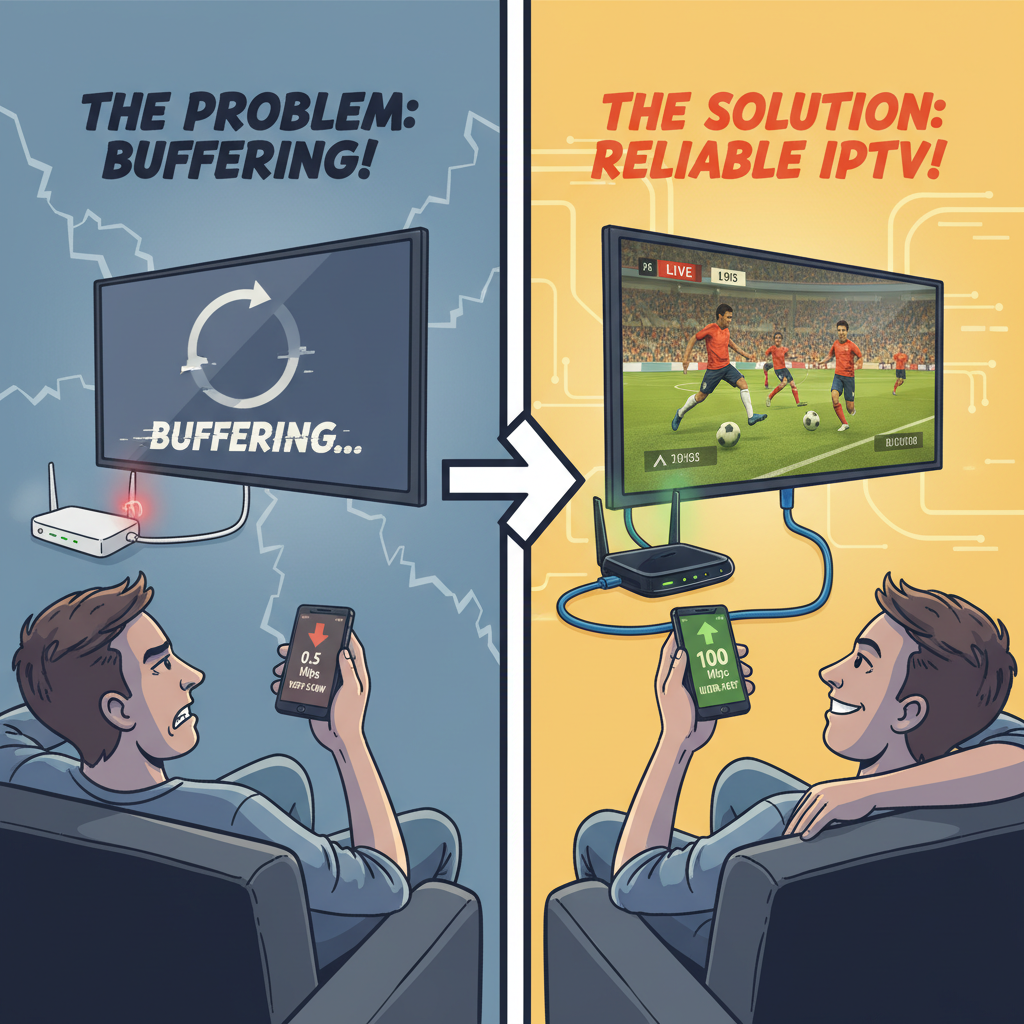
Buffering mid-show. Pixelated video. Audio that drifts out of sync. If you stream IPTV on a slower connection, these frustrations are probably familiar. IPTV, Internet Protocol Television, delivers live TV, on-demand content, and recorded programming entirely over the internet, which makes it flexible and feature-rich. But that reliance on internet bandwidth is also its biggest vulnerability when your connection can’t keep up.
The good news: slow internet doesn’t have to mean a poor streaming experience. With the right adjustments to your network, device, and IPTV settings, you can dramatically reduce buffering and get a stable, watchable picture even on limited bandwidth. This guide walks you through exactly how to do that.
Why Low Bandwidth Disrupts IPTV Streaming
IPTV streams are data-intensive by nature. Every second of video requires a continuous flow of data from a remote server to your device. When your download speed dips below what the stream requires, the player has to pause and buffer, essentially waiting for more data to arrive before it can continue playing.
The higher the resolution, the worse this problem gets. Standard definition (SD) content is relatively forgiving, but HD and 4K streams demand significantly more. According to Netflix’s official help documentation, HD at 720p requires at least 3 Mbps, Full HD at 1080p needs 5 Mbps or higher, and Ultra HD (4K) requires 15 Mbps or more. Those figures represent a stable, consistent connection, not a theoretical peak speed that drops the moment someone else in the house opens a browser tab.
Test Your Internet Speed First
Before changing any settings, get a clear picture of what you’re working with. Two free tools make this straightforward:
- Speedtest by Ookla (speedtest.net) measures your download speed, upload speed, and ping (the reaction time of your connection). Low ping is good; high ping can introduce lag and sync issues even when download speed looks acceptable.
- Fast.com, run by Netflix, offers a quick, no-frills download speed test measured directly against Netflix infrastructure.
Run both tests at different times of day, network congestion during peak evening hours can cut effective speeds considerably. If your results consistently fall below the thresholds above for your preferred streaming quality, the tips below will help you make the most of what you have.
Optimize Your Home Network for IPTV
Switch to a Wired Connection
Wi-Fi is convenient, but it introduces signal interference, packet loss, and variable speeds that can wreak havoc on a live stream. Connecting your streaming device directly to your router via an Ethernet cable removes those variables entirely, delivering a more stable and consistent connection. If running a cable isn’t practical, position your device as close as possible to the router and minimize the number of walls between them.
Upgrade an Outdated Router
A router more than a few years old may not support modern Wi-Fi standards. Wi-Fi 5 (802.11ac) and Wi-Fi 6 (802.11ax) offer substantially better throughput and handle multiple connected devices more efficiently than older standards. If your router struggles even when your ISP speed looks fine, the hardware may be the bottleneck.
Reduce Network Congestion
Every device on your home network competes for bandwidth. Large file downloads, video calls, and cloud backups running in the background can quietly consume the bandwidth your IPTV stream needs. Before you start watching, pause downloads, close bandwidth-heavy apps on other devices, and ask others on the network to hold off on data-intensive activity.
Adjust Your IPTV Streaming Settings
Lower the Streaming Quality
Most IPTV apps and services let you manually select video quality. Dropping from 1080p to 720p, or even SD, significantly reduces the bandwidth required. You lose some sharpness, but a clean SD picture beats a constantly buffering HD one.
Enable Adaptive Bitrate Streaming
Many modern IPTV platforms support adaptive bitrate streaming (ABR), a technology that automatically adjusts video quality in real time based on your available bandwidth. As Cloudflare explains, ABR works by encoding video at multiple quality levels, then having the player select the highest-quality version the connection can handle without buffering. If conditions change, say, someone else starts streaming, the player steps down to a lower bitrate rather than freezing.
Check your IPTV app’s settings to confirm ABR is enabled. On slower connections, this single feature can make the biggest difference.
Increase the Pre-Buffer Size
Some IPTV apps allow you to adjust the buffer size, essentially how much content the player downloads before it starts playing. A larger pre-buffer gives the stream a head start, smoothing out brief dips in connection speed. Look for buffer or cache settings within your app’s advanced playback options.
Choose an IPTV Service with Low-Bandwidth Features
Not all IPTV platforms handle slow connections equally. When your bandwidth is limited, look for providers that offer:
- SD-only or low-bitrate stream options that reduce data consumption without requiring you to adjust settings manually
- Data-saving or bandwidth-saving modes that apply efficient video compression across the service
- Reliable server infrastructure that minimizes the distance data travels to reach you, reducing latency
IPTV Canada, for example, offers optimized streaming options suited to a range of connection speeds, making it a practical choice for users who don’t have access to high-speed internet.
Use a VPN or Smart DNS, Carefully
VPNs for ISP Throttling
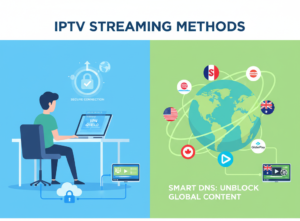
Some internet service providers deliberately throttle video streaming traffic during peak hours. A VPN encrypts your traffic, which can prevent your ISP from identifying and throttling streaming data. If you suspect throttling is a factor, a well-regarded VPN with fast servers may help restore consistent speeds.
One important caveat: a VPN routes your traffic through an additional server, which can add latency and reduce overall speeds. On an already limited connection, a poorly chosen VPN may make things worse rather than better. Prioritize VPN providers that offer servers geographically close to you and explicitly optimize for streaming use.
Smart DNS as an Alternative
Smart DNS is a lighter-weight option. It reroutes only the portion of your traffic related to geographic detection, rather than encrypting all data. This means it typically has less impact on connection speed than a VPN, making it a sensible choice for low-bandwidth situations where you simply need to access region-specific IPTV content. Setup usually involves changing the DNS server address in your router or device’s network settings.
Consider a Better Streaming Device
The hardware you stream on matters. Smart TVs, especially older models, often run limited processing power that struggles with buffering management. Dedicated streaming devices tend to handle these situations more gracefully.
- Android TV boxes designed specifically for IPTV often include better codec support and more granular buffering controls.
- Amazon Fire Stick and Chromecast are both optimized for streaming and handle lower bandwidth more efficiently than many built-in smart TV apps.
- Regardless of device, close any apps running in the background that may be consuming processing power or network resources.
Troubleshooting Common IPTV Problems on Slow Connections
Buffering and freezing: Start by lowering video quality, closing background apps, and disconnecting other devices from the network. If the problem persists, restart your router and streaming device to clear any lingering connection issues.
Audio/video sync issues: These often occur when bandwidth fluctuates unpredictably, causing video and audio packets to arrive at different rates. Lowering stream quality reduces the data load and can restore sync. Some IPTV apps also include a manual audio delay adjustment in their settings.
Persistent problems: If nothing else resolves the issue, contact your ISP to check for line problems or confirm whether your plan’s actual speeds match what you’re paying for.
Getting the Most from a Limited Connection
Slow internet doesn’t have to mean poor IPTV quality. The combination of a wired connection, adaptive bitrate streaming enabled, manually reduced video quality, and a capable streaming device will take you a long way, even on a connection that falls below recommended speeds.
Start by running a speed test to understand your baseline, then work through the network and settings changes above. For a streaming platform built with these challenges in mind, explore IPTV Canada’s plans to find an option that fits your connection and viewing needs.