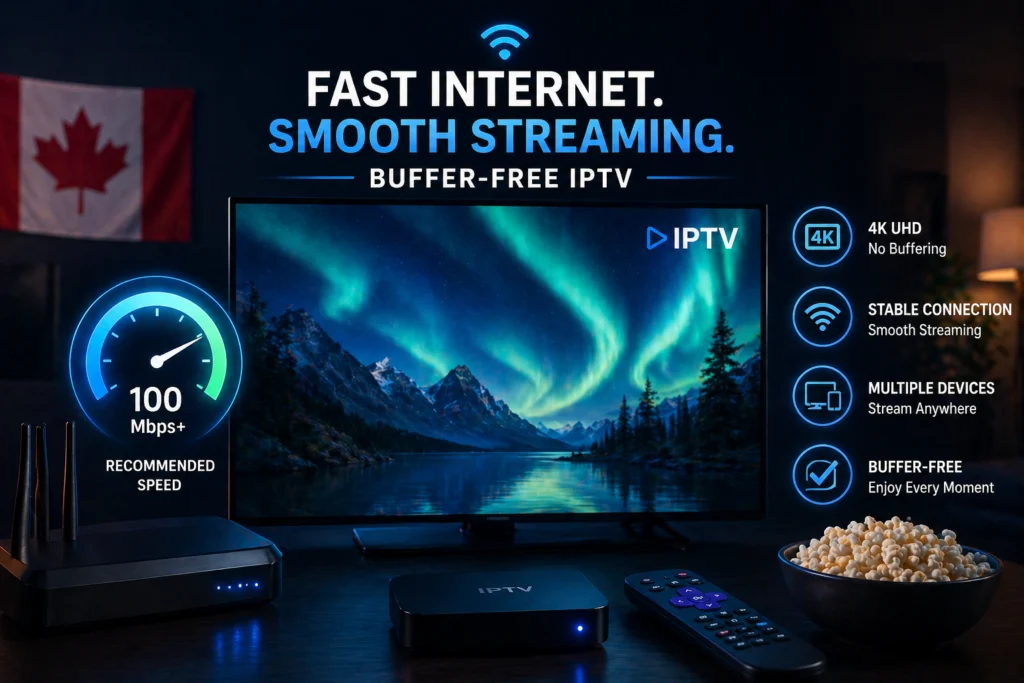
You sit down on the couch, grab the remote, and load up your favorite live sports channel. You paid for a premium IPTV service, expecting crystal-clear picture quality and a flawless viewing experience. Instead, the screen freezes right at the crucial moment, leaving you staring at a spinning loading wheel. Frustration sets in, and you immediately blame your IPTV provider for selling you a subpar service.
However, the real culprit is often sitting right in your living room: your internet connection. Many viewers mistakenly believe that any standard internet package can handle live television streaming. The truth is that IPTV requires a specific type of network stability that goes far beyond basic web browsing.
This guide breaks down the exact internet speed requirements for every streaming quality and household situation. Because Canadian telecommunications vary wildly across providers like Bell, Rogers, Shaw, and Videotron, not all internet plans deliver the same performance. By the time you finish reading, you will know exactly how to diagnose your buffering issues, understand your real network speeds, and achieve that flawless stream you originally paid for.
Why Internet Speed Matters So Much for IPTV
Streaming on Netflix or YouTube is a very different technical process compared to watching live IPTV. Traditional streaming services use a technology called pre-buffering. When you press play on a movie, the platform downloads a few minutes of video ahead of what you are currently watching. If your internet connection briefly drops, the video keeps playing because the data is already stored on your device.
IPTV streams operate in real-time. You are watching a live feed, meaning there is no opportunity for your device to download data in advance. When your internet speed drops below the minimum requirement for even a second, the video feed has no backup data to rely on. The result is immediate freezing, severe pixelation, or a complete disconnection from the server.
A smooth live stream relies on a delicate balance of download speed, upload speed, and network latency. Furthermore, paying for a 100 Mbps internet plan does not guarantee you receive 100 Mbps all the time. Network congestion, Wi-Fi interference, and hardware limitations frequently throttle your actual speed to a fraction of what you pay for.
Understanding the Numbers — What Speed Terms Actually Mean
Before looking at specific speed requirements, you need to understand the terminology internet service providers use. Knowing these terms helps you identify exactly where your network is failing.
Download Speed vs. Upload Speed
Download speed measures how quickly data travels from the internet to your device. For IPTV, download speed is the most critical metric because you are constantly pulling video data from a server. Upload speed measures how fast you can send data out to the internet. While less critical for IPTV, a severely congested upload speed can prevent your device from sending the required signal requests to the server, causing connection errors.
Latency (Ping)
Latency, often referred to as ping, is the time it takes for a signal to travel from your device to the server and back. High latency causes live stream delays and freezing. For live TV, a low ping is just as important as a high download speed.
Jitter
Jitter is the hidden killer of smooth IPTV streams. It measures the fluctuation or variation in your latency over time. If your ping jumps rapidly from 20ms to 150ms and back, that high jitter will scramble the steady flow of video packets. The stream will stutter and buffer, even if your overall download speed is incredibly high.
Advertised Speed vs. Actual Speed
Providers advertise “up to” a certain speed. Your actual speed fluctuates based on the time of day, the number of devices connected, and your physical distance from the Wi-Fi router.
Exact Speed Requirements by Stream Quality
To prevent buffering, your internet connection must continuously support the resolution of your video feed. Below is a scannable table and breakdown of the minimum and recommended speeds for different viewing qualities.
| Stream Quality | Minimum Speed Needed | Recommended Speed | Best Used For |
| SD (480p) | 5 Mbps | 10 Mbps | Older TVs, limited data plans |
| HD (720p) | 10 Mbps | 15 Mbps | Casual viewers, smaller screens |
| Full HD (1080p) | 15 Mbps | 25 Mbps | Standard Canadian households |
| 4K Ultra HD | 25 Mbps | 50 Mbps | Home theaters, premium setups |
SD Quality (480p)
You need a minimum of 5 Mbps to stream standard definition content. This quality is best reserved for older devices or users on very restrictive data plans. Most people find SD unwatchable on modern, large-screen televisions due to the severe lack of detail.
HD Quality (720p)
High definition requires at least 10 Mbps, though 15 Mbps is highly recommended for a stable stream. This resolution provides a solid viewing experience for most casual viewers watching on mid-sized screens or mobile devices.
Full HD (1080p)
Full HD is the most popular quality level for Canadian households. While the minimum requirement is 15 Mbps, you should aim for 25 Mbps to guarantee a buffer-free experience. This ensures the fast-paced motion in sports or action movies remains crisp and fluid.
4K Ultra HD
Streaming in 4K demands significant bandwidth. The absolute floor is 25 Mbps, but 50 Mbps is the true recommended speed for stable 4K viewing. Because 4K streams carry massive amounts of data, any slight dip in network performance will cause immediate buffering if you hover near the minimum threshold.
How Many Devices Are You Streaming On?
Internet bandwidth is shared across your entire home. The speed requirements listed above apply to a single device. If multiple people are using the internet simultaneously, your speed requirements multiply.
You can use a simple calculation formula to determine your needs: number of active streams multiplied by the recommended quality requirement.
Here are a few real household examples to help you calculate your needs:
- 1 person watching 1080p: 25 Mbps recommended. A basic entry-level internet plan will cover this perfectly.
- 2 people watching 1080p simultaneously: 50 Mbps recommended. You need a mid-tier plan to ensure neither stream drops in quality.
- Family of 4 with mixed quality streams: 100 Mbps recommended. If two people are watching 1080p IPTV, one is playing online video games, and another is scrolling social media, a 100 Mbps connection keeps everyone happy.
- Heavy household with 4K on multiple screens: 150-200 Mbps recommended. Homes with multiple smart TVs, heavy downloading, and simultaneous 4K streams should look at premium Gigabit or high-bandwidth plans.
It’s Not Just Speed — Other Factors That Cause Buffering
Many users upgrade to a 500 Mbps plan and are shocked when their IPTV still buffers. Speed is only one part of the equation. Ignoring latency and jitter is the primary reason people experience buffering on fast connections.
Latency and Ping
For a flawless live streaming experience, an acceptable latency is under 50ms. If your ping exceeds 100ms, the communication between your television and the IPTV server takes too long. This delay causes the video feed to pause while it waits for the next batch of data to arrive. You can easily test your latency using online speed test tools.
Jitter
As mentioned earlier, jitter disrupts the steady delivery of data. When video data packets arrive out of order or with inconsistent timing, the video player panics and freezes the screen. You can identify jitter problems if your internet speed tests show wildly fluctuating ping results. Reducing jitter usually requires switching to a wired network connection or upgrading an old router.
Wi-Fi vs. Ethernet
Wi-Fi speeds are rarely as reliable as advertised. Walls, furniture, and signals from neighboring apartments constantly interfere with your wireless connection. The real speed difference between Wi-Fi and a wired connection is staggering. Wi-Fi is acceptable for mobile phones and laptops, but an Ethernet cable is essential for your primary IPTV device. A direct wired connection eliminates interference, stabilizes latency, and completely removes Wi-Fi jitter.
Router Quality
An outdated router acts as a severe bottleneck, throttling even the fastest internet plans. If you are paying for a 500 Mbps connection but using a five-year-old basic router, your television might only be receiving 30 Mbps. Look for dual-band or tri-band routers. Dual-band routers split traffic between a slower, far-reaching 2.4 GHz channel and a faster, shorter-range 5 GHz channel. Tri-band routers add a second 5 GHz channel, acting like an extra lane on a highway to prevent network traffic jams.
Network Congestion
Internet speeds slow down during peak hours, typically between 7 PM and 11 PM. During this time, your entire neighborhood is streaming, gaming, and downloading simultaneously. Some Canadian ISPs heavily throttle specific types of traffic during these evenings to manage network load. If your stream only buffers at 8 PM, network congestion or ISP throttling is likely the root cause.
Minimum vs. Recommended vs. Ideal — The Three Tiers
When evaluating your internet capabilities, it helps to categorize your speeds into three distinct tiers. Always aim for the recommended or ideal tiers, rather than settling for the minimum.
- Minimum: The absolute floor. You will experience occasional buffering, especially during high-action scenes or peak evening hours.
- Recommended: A stable experience for most situations. The stream handles normal fluctuations without interrupting your viewing.
- Ideal: Future-proof bandwidth. This tier handles peak neighborhood hours, background downloads, and multiple heavy devices comfortably.
| Stream Quality | Minimum | Recommended | Ideal (Future-Proof) |
| 1080p (Full HD) | 15 Mbps | 25 Mbps | 50 Mbps+ |
| 4K Ultra HD | 25 Mbps | 50 Mbps | 100 Mbps+ |
Internet Plans in Canada — What’s Actually Enough
Canadian internet service providers offer a wide range of plans, but navigating them can be confusing. Here is an overview of what typical Canadian ISPs offer and what you actually need.
- Bell and Telus: Both providers offer robust fiber-optic networks. Fiber connections provide symmetrical upload and download speeds with incredibly low latency. A basic 50 Mbps fiber plan from Bell or Telus is often more stable for IPTV than a 150 Mbps cable connection due to the superior ping and low jitter.
- Rogers, Shaw, and Videotron: These providers primarily use high-speed cable networks. They offer excellent download speeds (often up to 1.5 Gbps), which is more than enough for heavy household use. However, cable networks can experience slightly higher latency during neighborhood peak hours compared to pure fiber.
- Rural Canada Solutions: If you live outside major urban centers, fast internet is sometimes hard to find. Fixed wireless or satellite internet may be your only options. In these cases, you must closely monitor your latency.
- 5G Home Internet: Providers are rolling out 5G home internet hubs across the country. While 5G offers fast download speeds, wireless cellular connections naturally suffer from higher jitter. It is generally good enough for 1080p IPTV, but hardcore 4K viewers might experience occasional stuttering.
How to Improve Your Speed Without Upgrading Your Plan
Most buffering problems are fixable without spending more money on a faster internet plan. Follow these steps to optimize your current home network.
Restart Your Router Regularly
Routers are small computers that handle millions of requests a day. Restarting your router clears its short-term memory and fixes lingering connectivity bugs. Simply unplug it for 30 seconds and plug it back in.
Switch to Ethernet
Move your main television or streaming box off the Wi-Fi and plug it directly into the router with an Ethernet cable. This single change solves 90% of all IPTV buffering issues.
Change Your Wi-Fi Channel
If you live in an apartment building, your neighbor’s Wi-Fi is likely interfering with yours. Log into your router’s settings and change the Wi-Fi channel to a less crowded frequency to reduce wireless interference.
Use a Mesh System or Extender
If your router is in the basement and your TV is on the second floor, the signal will be weak. Use a Wi-Fi extender or upgrade to a mesh network system to push a strong, consistent signal to distant rooms.
Optimize Router Placement
Position your router centrally in your home. Keep it off the floor and away from thick concrete walls, microwaves, and large metal appliances that block radio waves.
Enable Quality of Service (QoS)
Many modern routers feature QoS settings. This feature allows you to prioritize specific devices. You can tell your router to prioritize the IPTV data going to your living room TV, ensuring it gets the bandwidth it needs even if someone else is downloading a large file.
How to Test if Your Speed Is Enough for IPTV Right Now
To accurately diagnose your network, you need to run a proper speed test. Guessing your speed based on your internet bill will only lead to frustration.
Step 1: Open a web browser on your streaming device and navigate to fast.com or speedtest.net.
Step 2: Run the test during peak hours (around 8 PM). Testing at noon when everyone is at work will give you an artificially high result.
Step 3: Test on the specific device you use for IPTV. Testing on your phone while standing next to the router does not tell you the speed your TV is receiving in the next room.
Step 4: Compare your results to the speed requirements table in Section 3. Check both download speed and latency.
Step 5: Run the test twice—once on Wi-Fi and once using an Ethernet cable. If the wired test is drastically faster, Wi-Fi interference is your primary bottleneck.
What to Do If Your Internet Is Too Slow for IPTV
If your speed tests confirm that your network is struggling, you have several options to fix the viewing experience.
Option 1: Upgrade Your Internet Plan
If your entire household is fighting over a 25 Mbps connection, it is time to upgrade. Contact your Canadian ISP and move to a higher tier.
Option 2: Switch to a Wired Connection
As previously stated, bypassing the wireless network by plugging an Ethernet cable into your device provides an instant boost to stability.
Option 3: Lower Your Stream Quality
If you are watching a 4K feed and experiencing buffering, manually lower the stream quality to 1080p or 720p. The picture will be slightly softer, but the constant freezing will stop.
Option 4: Reduce Simultaneous Devices
Ask your family members to pause their heavy downloads or turn off idle smart devices while you watch your live event.
Option 5: Switch to a More Efficient IPTV Provider
Not all providers compress their video data efficiently. Some servers struggle to push data to Canadian viewers effectively. Switching to a highly optimized service can make a massive difference. Providers like iptvcad are engineered to work efficiently, delivering stable streams even on modest internet connections.
Achieving a Flawless Streaming Experience
A premium viewing experience relies heavily on a healthy home network. As a starting point, remember that 25 Mbps is the recommended benchmark for a single 1080p stream. However, raw download speed is only one piece of a much larger puzzle. Latency, jitter, and the quality of your home Wi-Fi setup dictate whether your video feed remains stable or freezes during the big game.
Most buffering problems are completely fixable without calling your ISP for a pricey upgrade. By plugging in an Ethernet cable, optimizing your router, and calculating your household bandwidth needs, you can easily take control of your network.
If you have optimized your internet connection and still experience frustrating lag, the problem likely rests with your provider’s servers. Try iptvcad today and see the profound difference a high-quality, efficiently hosted IPTV provider makes on your daily entertainment.