When your IPTV stops working, it is almost always one of a handful of causes – and most take only a minute or two to fix. Before you blame your IPTV service or switch providers, work through this guide. It is organised by symptom, so you can jump straight to what is happening on your screen: a frozen picture, a black screen, missing channels, a failed login, or the whole service going dark. If IPTV is not working for you, start with the 60-second checklist below.
The 60-Second Checklist (Try This First)
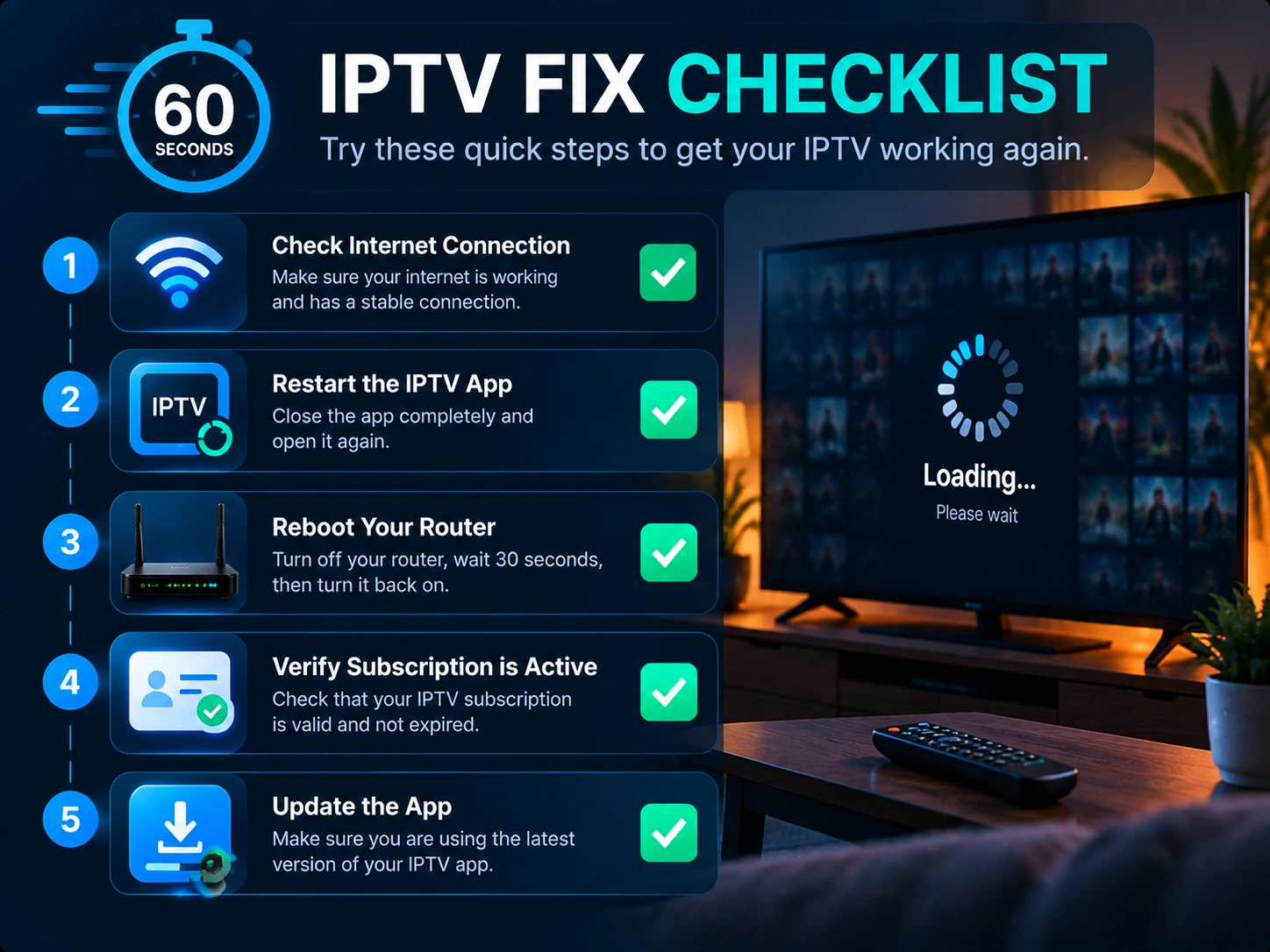
These quick steps resolve the majority of IPTV problems:
- Restart the app – fully close your IPTV player and reopen it.
- Restart the device – unplug your Firestick, box, or TV for 30 seconds and power it back on.
- Restart your router – power-cycle it to clear a stalled connection.
- Test your internet – open any website or run a speed test on the same device.
- Confirm your subscription is active and has not expired.
- Update the app to the latest version.
Still stuck? Find your exact symptom below.
Fix IPTV by Symptom
The app will not open or keeps crashing
Clear the app cache (or uninstall and reinstall it), make sure your device software is up to date, and free up storage if the device is nearly full. On a Firestick, low memory is a common cause – remove unused apps and restart.
No channels load / the playlist is empty
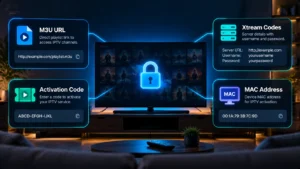
This is usually a login or link problem. Re-enter your details carefully, as a single wrong character breaks the whole list. Check that your M3U URL or Xtream Codes login is correct and current – our guide to M3U and Xtream Codes explains each field. If the link was working yesterday, your subscription may have expired or the provider may have issued a new URL.
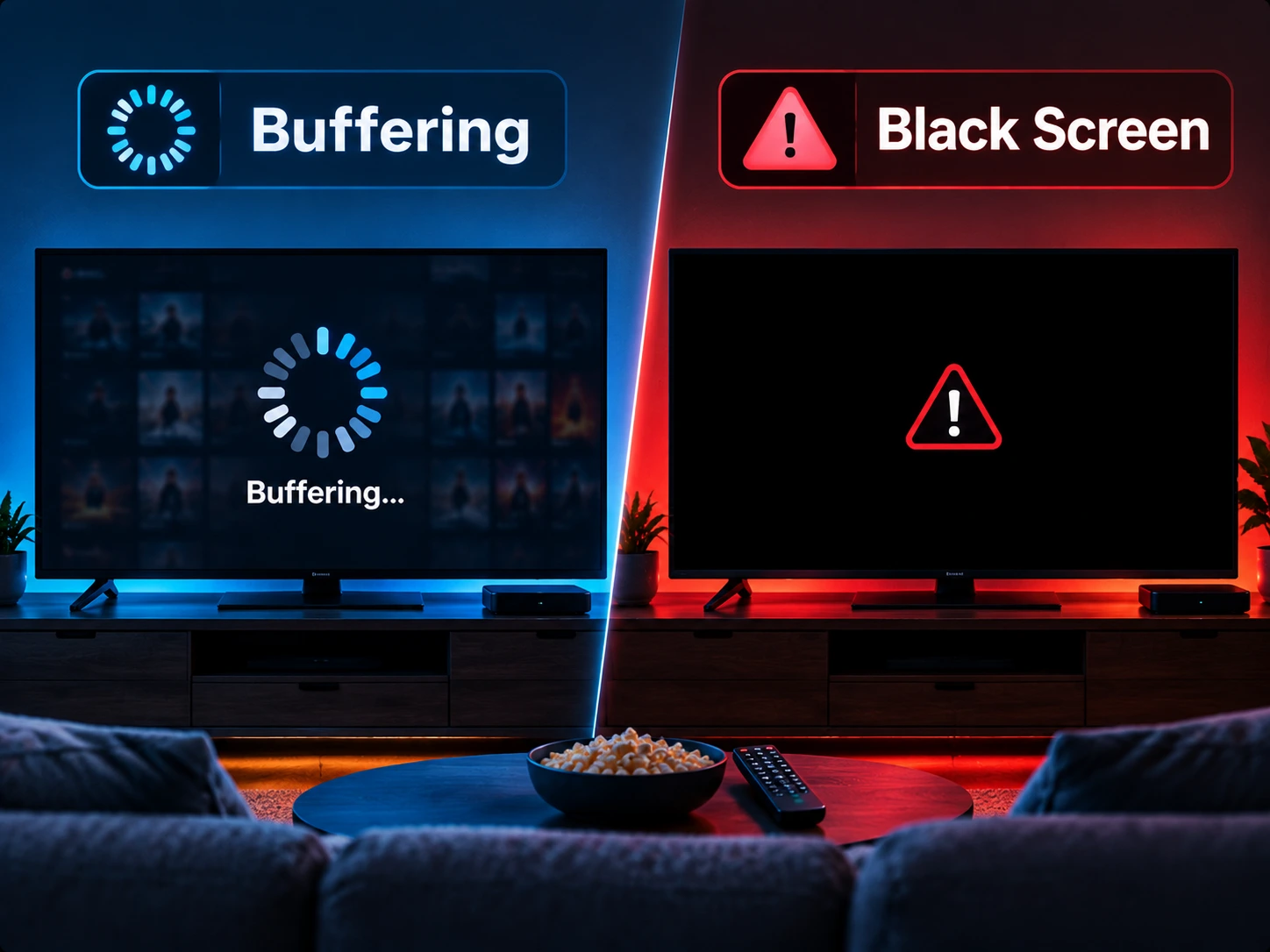
Constant buffering or freezing
Buffering is almost always a network issue, not a broken service. Wire your main box with Ethernet, move it closer to the router, or upgrade a weak router. Our full guide to stopping IPTV buffering walks through every fix, including player buffer settings.
Black screen (or sound but no picture)
Try a different channel first – if others play, that one stream is down temporarily. If every channel is black, switch the player decoder between hardware and software decoding in the app settings; a mismatch with your device is a frequent cause of audio-only playback.
Some channels work, others do not
Individual dead channels are normal and usually temporary – the source feed is down and typically returns on its own. If a whole category is missing, refresh or reload your playlist so the app pulls the latest lineup.
Login failed or “invalid credentials”
Double-check for typos, extra spaces, and a missing http:// or port number in the server URL. Confirm the subscription has not lapsed. If you recently renewed, you may need fresh login details. The M3U and Xtream Codes guide shows exactly what each field should contain.
Everything stopped working at once
If every channel died suddenly, check in this order: (1) your internet is up, (2) you have not exceeded your plan connection limit by streaming on too many devices, (3) your provider is not having brief maintenance. Some Canadian ISPs also interfere with streaming traffic – if that is the case, see whether your ISP is blocking IPTV and consider a VPN for IPTV.
The TV guide (EPG) is missing or wrong
The guide is separate from the channels. Reload the EPG source and confirm your time zone is set correctly – our EPG setup and troubleshooting guide covers it in detail.
Device-Specific Fixes
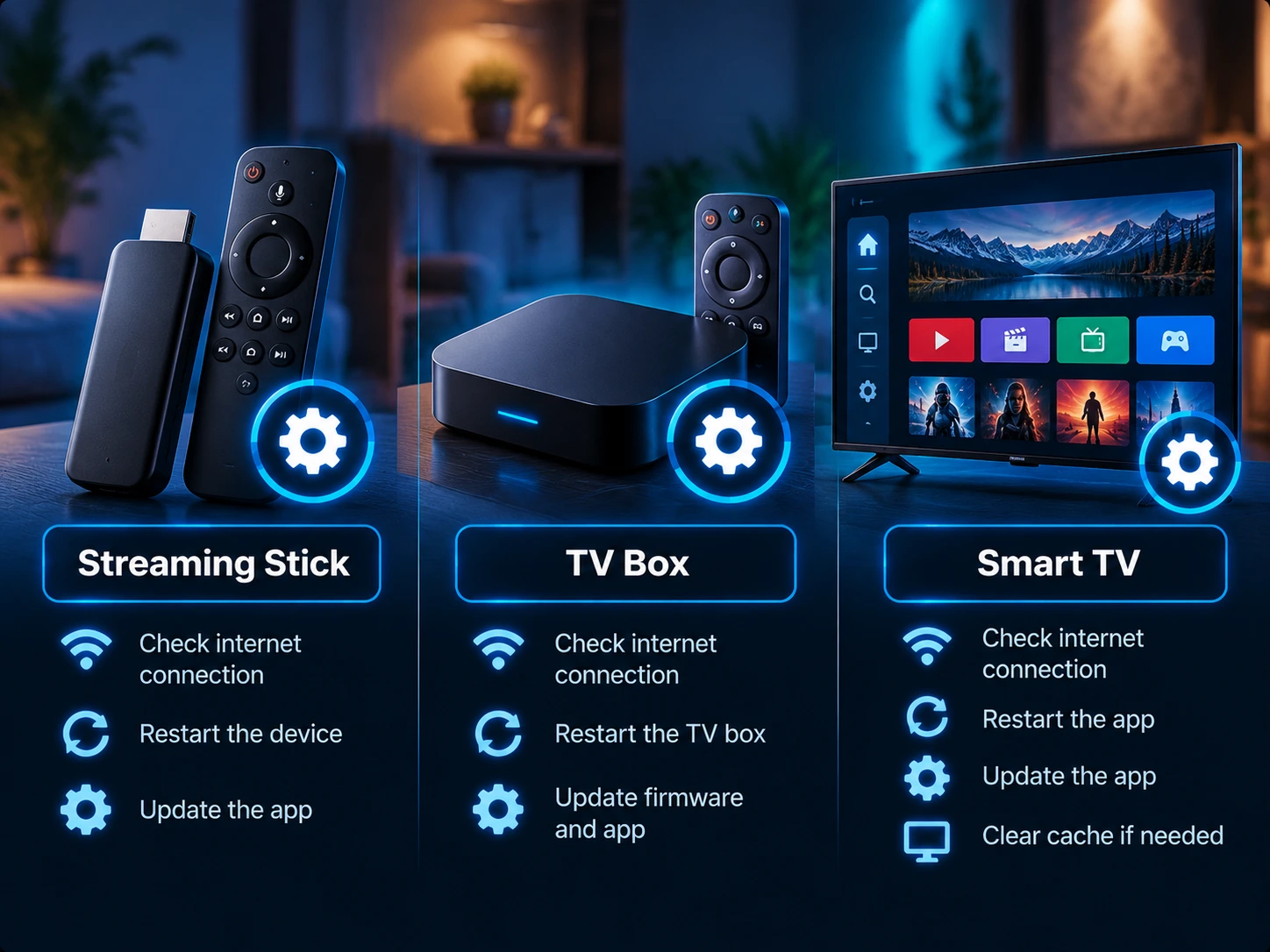
If the problem only happens on one device, a clean reinstall following the proper setup guide usually fixes it:
Is It You, Your Internet, or Your Provider?
A quick way to narrow it down:
- Only one channel fails: the source feed – wait it out.
- One device fails but others work: that device or its app – reinstall.
- Everything buffers: your network – check router and speed.
- Nothing works on any device and the internet is fine: the account or provider – verify your subscription, then contact support.
When to Contact Support
If you have worked through the checklist and your symptom above and it still will not play, contact your provider with details that speed up the fix: which device and app, the exact error message, whether one or all channels are affected, your internet speed, and what you have already tried. Clear information gets you a faster resolution.
Frequently Asked Questions
Why did my IPTV suddenly stop working?
The most common reasons are an expired subscription, an exceeded connection limit, an internet hiccup, or brief provider maintenance. Check those four before anything else.
Why does my IPTV keep buffering?
Buffering is a network issue in almost all cases. Use a wired connection or a stronger router and adjust your player buffer settings.
Why do some channels work and others do not?
Individual channels sometimes go down at the source and return on their own. If a whole group is missing, reload your playlist.
How do I know if my provider is down or it is just me?
If the internet works and every channel on every device is dead, it is likely the account or provider. If only some channels or one device are affected, it is usually local.
Could my internet provider be blocking IPTV?
Some ISPs throttle or interfere with streaming traffic. A VPN often restores a stable connection – see our guide on ISPs and IPTV.
The Bottom Line
Most “IPTV not working” problems come down to the app, the device, the network, or the subscription – and the checklist above fixes the vast majority in minutes. If you are tired of fighting an unreliable provider, test a stable line with a free IPTV trial from IPTV Canada and see the difference a solid service makes.